Privacy by default
No uploads, no account, no telemetry. Screenshots stay on your machine.
Open-source screenshot app for Windows
Snapboard is a privacy-first alternative to Lightshot, PicPick, Greenshot, and ShareX for fast everyday screenshot workflows on Windows 10/11. Region, window, and PicPick-style scrolling capture; blur, OCR, QR & barcode scan, color picker, pixel ruler, and pin-to-screen — in one tiny tray app.
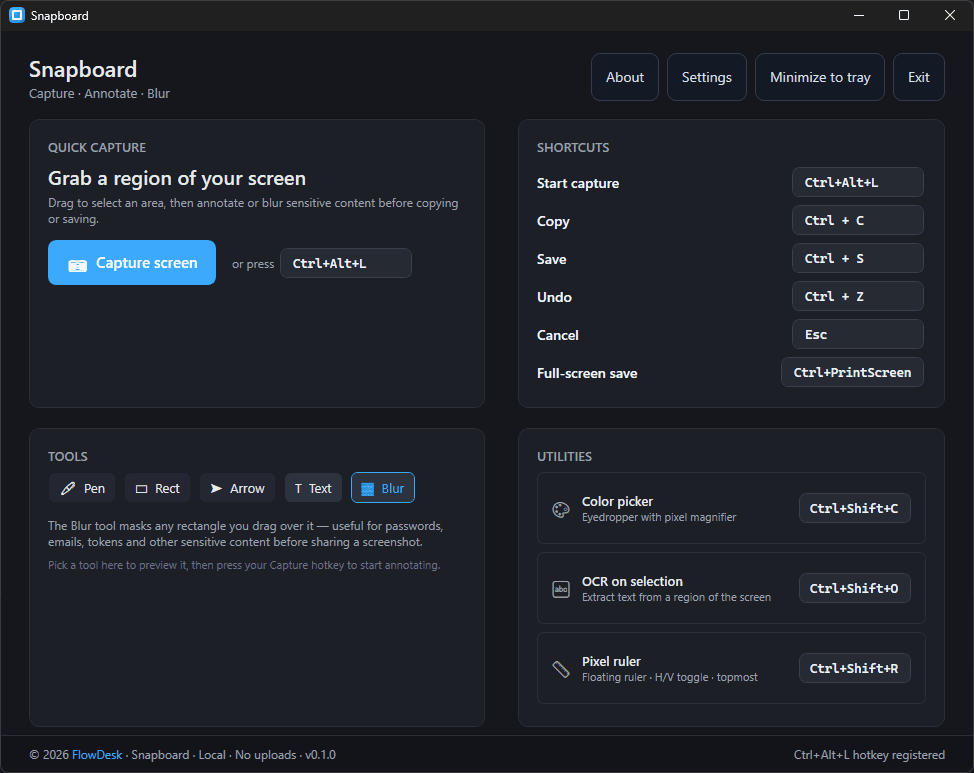
Clean dashboard for daily use, plus a Lightshot-style capture overlay for fast annotate-and-share workflows.
No uploads, no account, no telemetry. Screenshots stay on your machine.
Region capture, annotation, blur, OCR, color picker, and pixel ruler in one small tray app.
Global hotkeys, dark UI, and instant save options for documentation, QA, support, and dev teams.
Capture UI bugs quickly, annotate exactly where the issue is, and keep sensitive test data hidden with blur.
Create step-by-step replies with arrows, text labels, and instant copy/save actions that speed up ticket resolution.
Use global hotkeys, OCR extraction, and auto-save to document flows without context switching or extra tooling.
Drag-to-select any area, then use pen, rectangle, arrow, text, blur, and undo — all offline.
A compact dark dropdown lists every open window. Select one and Snapboard grabs it via pixel-perfect PrintWindow, copies it to the clipboard, and opens a pre-filled save dialog — works with hardware-accelerated Chromium, Electron, and UWP apps.
Hover any scrollable window and Snapboard red-outlines only the content child — no title bar, tabs, or toolbars. Click once and it auto-scrolls by posting WM_MOUSEWHEEL to the right child (Chrome, Edge, Electron, Slack, Discord, Cursor), stitches every frame with multi-strip overlap correlation, then copies to the clipboard and prompts to save.
Pin any capture as a floating, always-on-top reference window. Drag, zoom, and keep it visible while you type — the flagship feature ShareX doesn't ship.
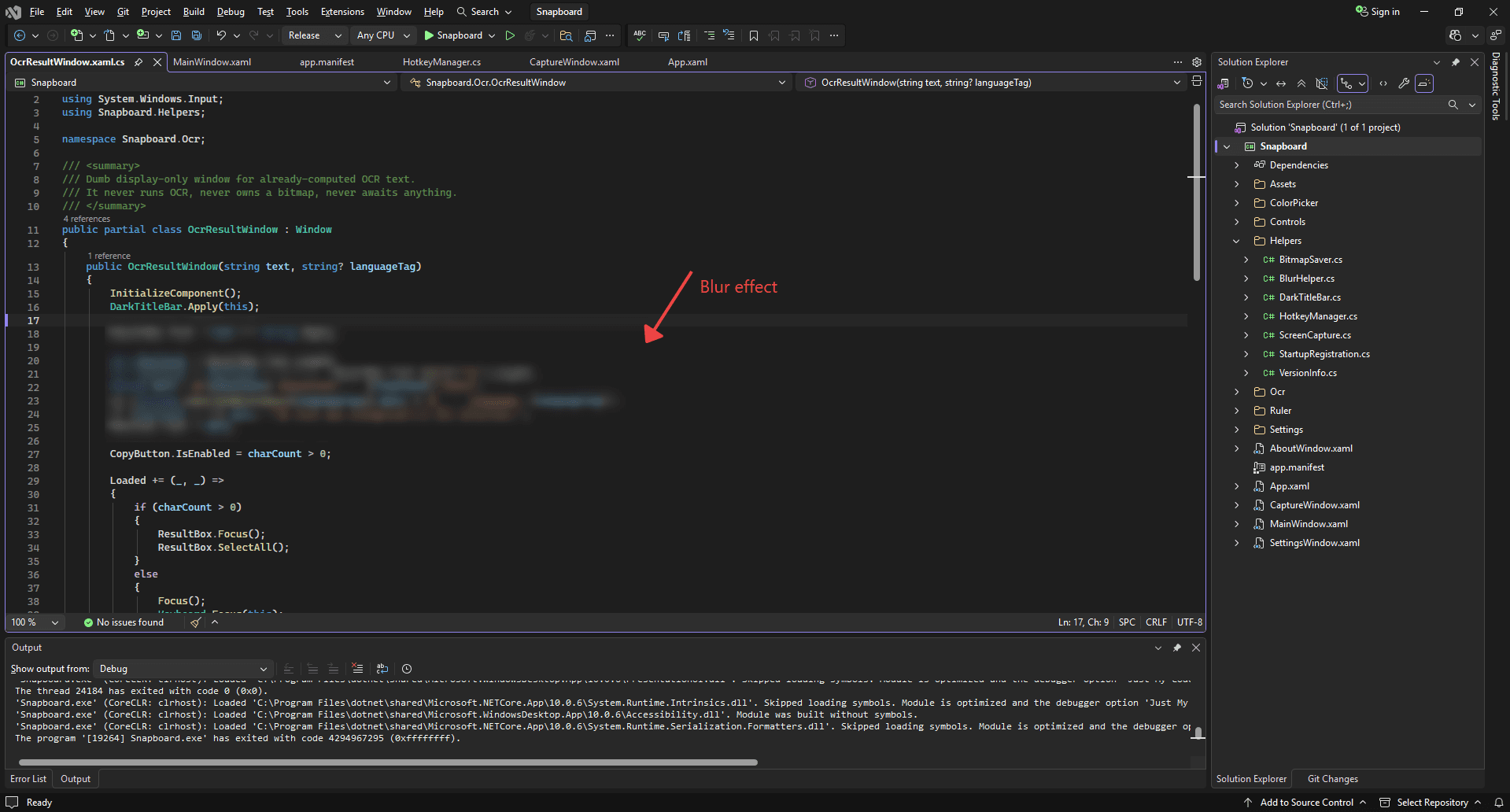
Pixelate sensitive data before sharing screenshots in docs, chat, or tickets.
Extract text from any selected area using the built-in Windows OCR engine — no cloud calls.
Drag a rectangle around any QR, Data Matrix, Aztec, PDF-417, or EAN/UPC/Code-128 barcode and Snapboard decodes it offline via ZXing.Net — with automatic upscale and colour-inversion fallbacks for tiny or dark-mode codes. Copy the payload or open http(s) links in one click. Default hotkey Ctrl+Shift+Q.
One-click Google Images and Bing Visual Search directly from the capture toolbar — the bitmap goes straight to the search engine, never to a third-party host.
Color picker with magnifier + HEX/RGB/HSL, and a floating pixel ruler — same hotkey-driven app.
Snapboard checks the public GitHub Releases feed on startup and once a day; a dark prompt shows the release notes with Install / Later / Skip. Updates land in place with a silent installer, no Store, no telemetry, and auto-relaunch after upgrade.
Use Print Screen (or your custom hotkey) from anywhere in Windows.
Draw a region, add arrows/text, blur sensitive details, and undo as needed.
Send to clipboard instantly or auto-save to your preferred folder with zero upload.
| Feature | Snapboard | Lightshot | PicPick | Greenshot | ShareX |
|---|---|---|---|---|---|
| Region capture | Yes | Yes | Yes | Yes | Yes |
| Window capture (dropdown → clipboard + save dialog) | Yes | No | Yes | Yes | Yes |
| Scrolling capture (auto-scroll + auto-stitch) | Yes | No | Yes | No | Yes |
| Pin screenshot to screen (Snipaste-style) | Yes | No | No | No | No |
| Reverse image search (Google / Bing) | Yes | Partial | No | No | No |
| Blur sensitive data | Yes | No | Yes | Yes | Yes |
| OCR on selection | Yes | No | No | No | Yes |
| QR / barcode scan on selection | Yes | No | No | No | No |
| Color picker + pixel ruler | Yes | No | Yes | Partial | Yes |
| 100% offline, no account | Yes | No | Yes | Yes | Yes |
| Open-source (MIT) | Yes | No | No | Yes (GPL) | Yes (GPL) |
Snapboard matches ShareX on capture modes (region, window, scrolling) while adding pin-to-screen — the one feature ShareX never shipped. Want a deeper breakdown? See the full comparison page.
Compare Snapboard with Lightshot for privacy, OCR, and productivity workflows.
See how Snapboard compares with PicPick for all-in-one screenshot and utility workflows.
See where Snapboard offers a more modern and focused screenshot workflow.
For teams that want speed and simplicity instead of broad power-user complexity.
See what to look for in a modern screenshot app for Windows teams.
Learn how OCR improves bug reporting, docs, and support workflows.
Built with C#, WPF, and .NET 10 for smooth Windows integration, dark title bars, and reliable desktop behavior.
OCR runs off the UI thread with timeout handling, so text extraction never blocks your desktop while work continues.
Yes. Snapboard is MIT-licensed and free for personal and commercial use.
No. Snapboard is built for local workflows and does not require sign-up or cloud upload.
Windows 10 (1903+) and Windows 11.
Yes. Every Snapboard tool has configurable global hotkeys in Settings.
Need more answers? Read all FAQs.
Download Snapboard for Windows and streamline capture, blur, OCR, and utility workflows in one local app.